
Storyliner is a tool that makes it easy to author, publish and manage new storylines. It’s designed to be used by journalists and other editorial staff so that they can model stories and events in a rich, data-driven format .
Login

To log in visit http://storylines.outlandish.com/ and enter your email address. The email address will be used as the attribution for the storylines that you create. Note that you can view and link to other users’ storylines, but not edit them. If you want to work collaboratively with other people or teams then you can share an email address and work as if you were the same user. The email addresses don’t have to be real, but please don’t use other people’s email addresses without permission as this could result in edit conflicts.
View existing Storylines
Once you log in for the first time you will see a list of all the Events and Storylines that have already been created in the system.
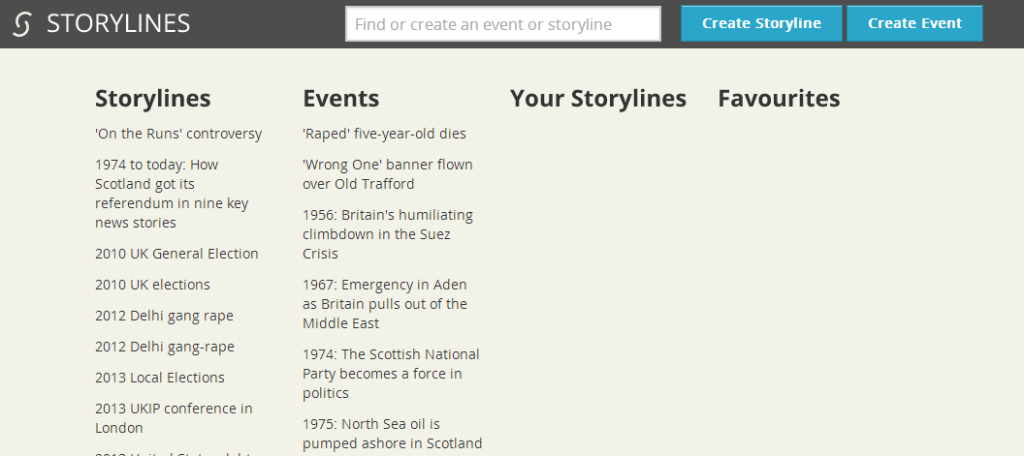
You can use the typeahead search to quickly find a storyline that you’re interested in, or use the buttons to create a new storyline or event.

Creating and editing storylines
Once you create a storyline you can start editing it. This is done through a number of tabs that allow you to create and edit the properties of the storyline or event, and link it to other objects.
Chapters
The chapters tab allows you to build up the events and sub-stories that make up a storyline. Wherever possible you should re-use existing storylines and events. For example, if you’re feeling brave and having a go at modelling “the middle east conflict” you should aim to include the “Syria crisis 2013 -14″ if it suits your needs. That way we will create more interesting user journeys and avoid constantly re-telling the same story.

Clicking on a sub-story or event will make that the active element which can be edited. You can see any storylines which contain the current story element on the left hand side.

Metadata
The information tab lets you specify and edit the metadata about the current event or storyline. Events have slightly different metadata that can be associated with them. Events also require a start date, while storylines only need a title.

Topics
The topics tab allows you to tag a storyline with DBpedia concepts. For example, a Ukraine crisis storyline might be tagged with Ukraine and, if you’re feeling brave Coup d’état.

Creative works

The Creative Works tab allows you to tag articles, images and videos with your Storyline tag.
When tagging a creative work with a storyline you can also define what the relationship between the creative work and the storyline is. The most general relationship is ‘tag’ but you can also use more specific predicates such as explains or opinionOn.

Extracts
Often and article will be too general to be tagged using the specific predicates such as opinionOn or answerAbout. In these cases it may be appropriate to create a textExtract from the main article using the left hand panel on the Creative Works tab.

Extracts are displayed below the list of other creative works and their full text is displayed. Once created they can be accessed through the usual NewsLab creative works APIs.

Delete

Hopefully this is self explanatory. Once it’s gone, it’s gone – there’s no undo, so be sure you want to delete something before you do. Deleting a storyline doesn’t delete the events or sub-stories that make it up, but those objects will no longer be linked together.
Publishing
Before you can access the storylines and events that you create through the NewsHack APIs you need to publish them.

This will publish the story and any components that have been included as chapters. If any of the components are missing required data (start date and title for events, and just a title for storylines) then the screen will show that there is a problem with the data and will prevent you from publishing the storyline.
If you have any problems during NewsHack or want to know more about Storyliner email or call Harry on . I’ll be around in Dublin to answer any questions. Teams based in Glasgow should seek out Jody Lan Castle for support as she no one knows more about how to use it than her.
Storyliner Walkthrough Screencast (no audio track)